How To Download And Add Custom Sims To Your Sims 4 Game
Last updated 12/23/2025
As a hoarder collector of other creators sims, this is one area I’m quite proficient in (check out my Sim Dump Archive).
One thing I’ve noticed however, is how many other people are struggling with this task. I’ve seen so many comments on YouTube videos, Tumblr and Patreon post of fellow simmers who sound utterly hopeless at why they can’t find a sim in their game.
Everything isn’t as simple as it seems to everyone and not everyone has been playing The Sims 4 for 10 years. Many people (like myself) didn’t even start playing until after the base game became free.
Unfortunately, many popular creators have been playing forever and don’t necessarily consider noobs to the game. This is why I started my Sims 4 Tutorial series.
For all those who are lost, confused, or don’t have a safe space to ask “dumb” questions, I got you boo.
In this blog post I’ll walk you step by step on how to download custom sims, how to extract zipped folders, where to move the extracted files, and how to find the sim you’ve downloaded in your game.
Let’s Begin!
Brand new here? Start with Where To Find Your Sims 4 Mods And Tray Folders
Step By Step Instructions
Step 1
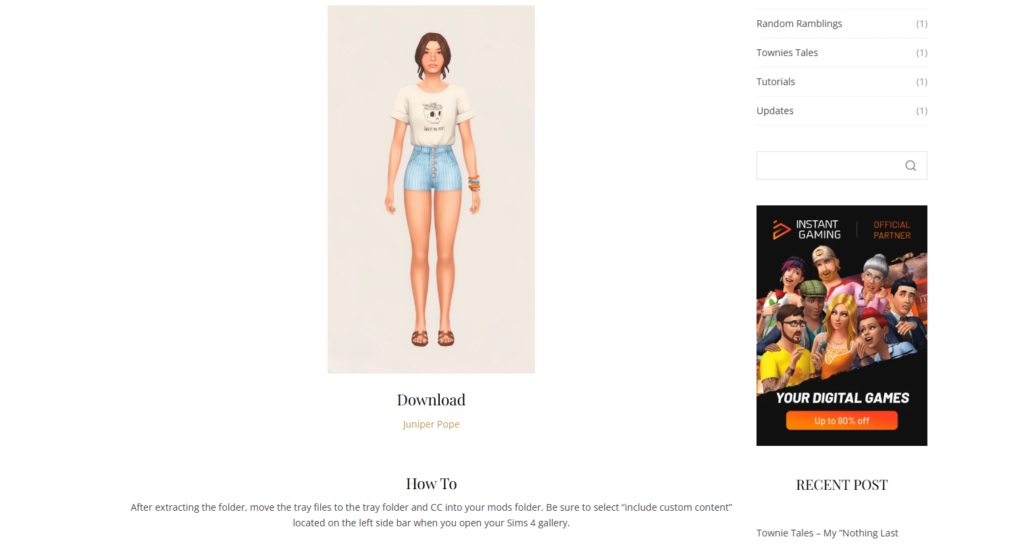
Find a sim that you want to download. I will be using my own sim which you can download for free here.
The sim dump shown in my video can be found here. Be sure to give the creator a heart, and pledge if you have the means.
Step 2
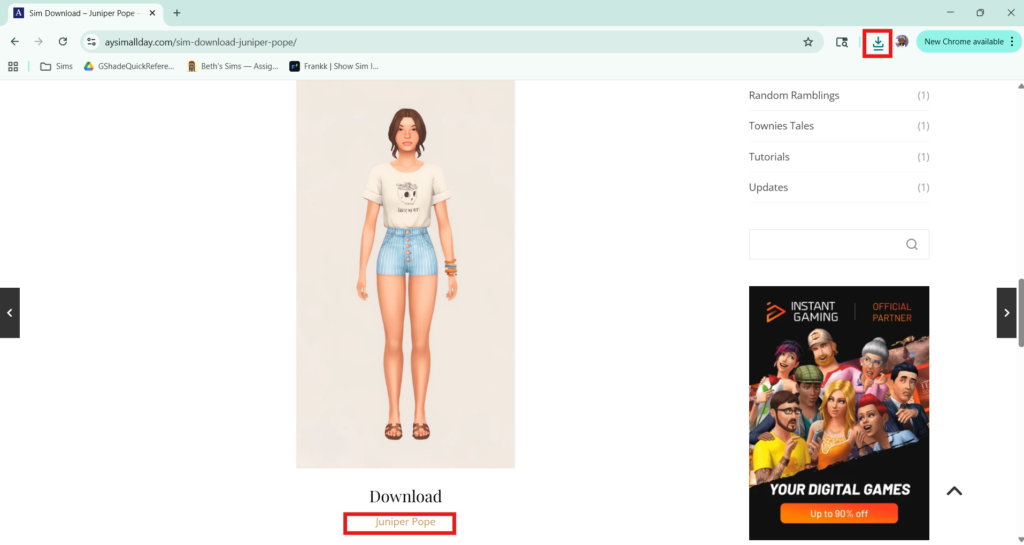
Download your chosen sim.
Step 3
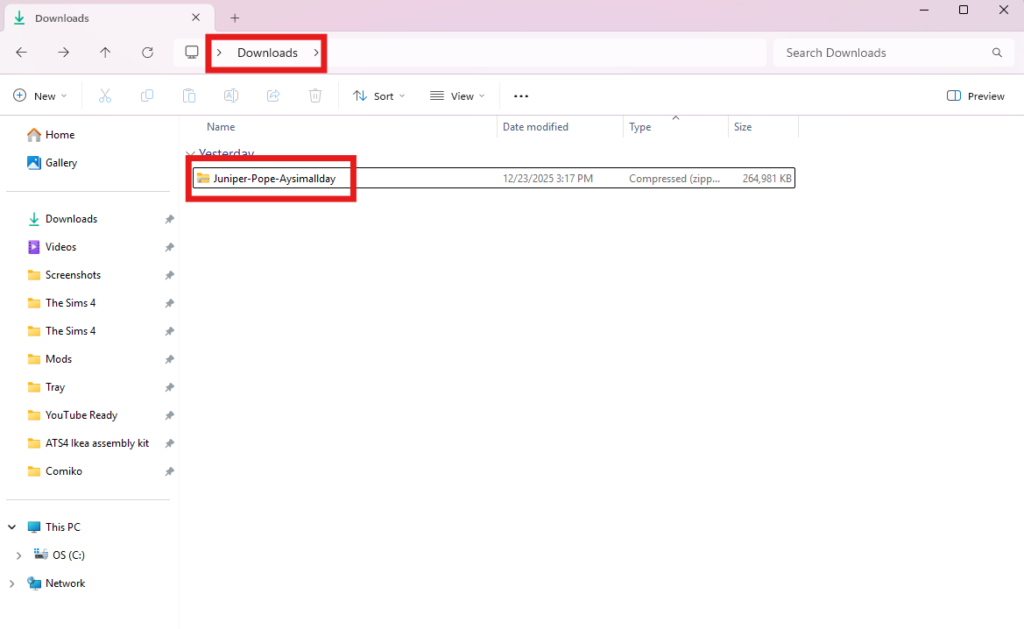
Locate the download in your downloads folder.
Step 4
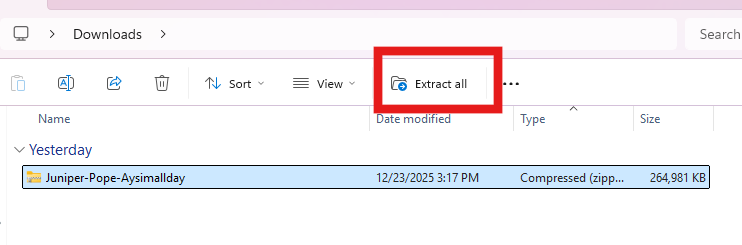
The file will be zipped. You will be able to tell that by the zipper on the folder and when you hoover over the folder it will say zipped.
Left click on the file. An “Extract All” option should appear just below your address bar.
Step 5
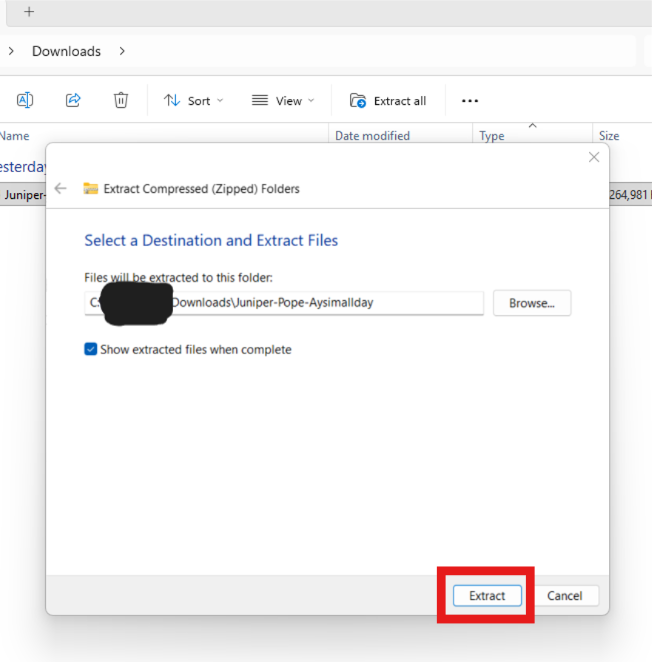
You will receive a pop-up box to select where you want your file extracted to. I keep mine set to extract into my downloads folder.
You can elect to have your extracted files stored somewhere else if you so choose, but you’ll most likely be deleting the folder anyway so it doesn’t too much matter.
Step 6
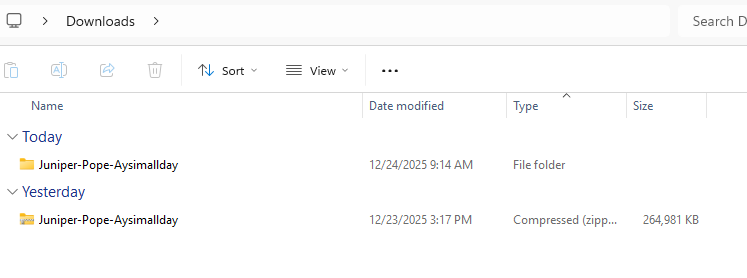
Now you should have two folders. You can delete the zipped one.
Step 7
Double left click to open the unzipped folder. You should see two folders, CC and Tray.
Keep in mind that folder names may vary by creator and download. The important thing to know is that tray files NEVER go in your mods folder.
Step 8
Step 9
Video Instructions
If you are more of a visual learner, here is a follow-along video to walk you through the same process documented above. I highly suggest watching the video through once so you know what to expect, then follow along with me the second time.
Bonus Tips
- Make sure you have custom content enabled in your Sims 4 game settings!
- Zipped files cannot be read by your game. Ensure that you have unzipped the file prior to moving it into any of your game folders.
- Tray files are how the game identifies builds and households in your game. You MUST place them inside of your tray folder in order to be properly read by the game.
- ALWAYS make sure to check for duplicate CC, especially if you download sims from the same creator. I use Sims 4 Mod Manger to easily find and remove duplicate CC and mods from my game.
Summary
That’s it! You’ve officially learned how to download and install custom sims into your Sims 4 game. Leave a comment below if you need additional help or to share any helpful tips you’ve picked up along the way.
Found this post helpful? Be sure to subscribe to my newsletter to get tutorials (and more) occasionally delivered to your inbox.
That’s all for now friends!
Stay Kind, Until next time 💋


You May Also Like
How To Find Your Sims 4 Mods Folder & Tray Folder (Beginner’s Step-By-Step Guide)

The Ultimate Sims 4 Builds List ( CC & No CC): Houses, Apartments, Community Lots & More