How To Find Your Sims 4 Mods Folder & Tray Folder (Beginner’s Step-By-Step Guide)
So you’ve just downloaded your very first Sims 4 mod or piece of custom content and now you’re stuck. Everyone keeps saying “just put it in your mods folder,” but …
WHERE EXACTLY IS IT AT?
Don’t worry. If you’re new to The Sims 4, new to custom content, or just tech-unsavvy, I’ve got you covered. This guide will walk you step by step through how to find (or create) your Sims 4 Mods and Tray folders with screenshots. No tech skills required.
What Are The Mod & Tray Folders?
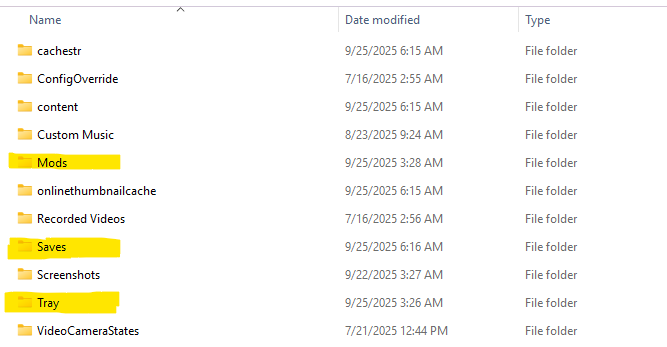
- Mods Folder – This is where you put all your downloaded custom content/mods (ex. package files and script files).
- Tray Folder – This folder contains all of your saved households, lots, rooms, tattoos, and anything else you want to appear in the “My Library” tab on the gallery.
- If you don’t put the downloaded tray files into the tray folder they will not appear in your library.
Both folders live in your Documents folder. It’s best practice not to have your documents folder sync or backup to OneDrive as this could lead to issues with your mods.
Not sure what mods to download? See what mods are currently in my mods folder here.
Step By Step Instructions
The following instructions are listed for PC users but the guidance will be relatively the same for Mac users as well. If you have a MacOS device, navigate to Finder in order to find your Sims 4 folder. I believe everything else is the same but do leave a comment below for fellow Mac users if I’m wrong.
Step 1
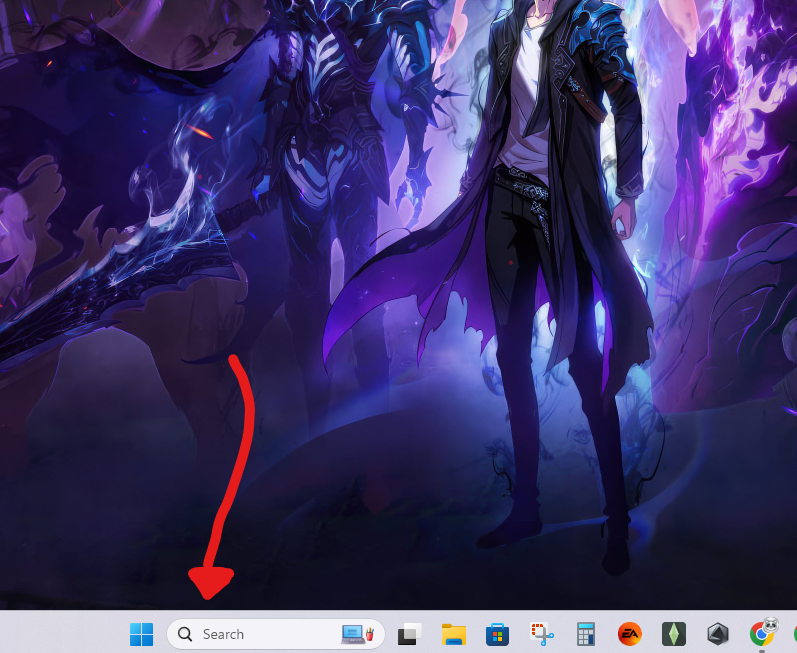
Locate the “Search Bar” on your taskbar
Step 2
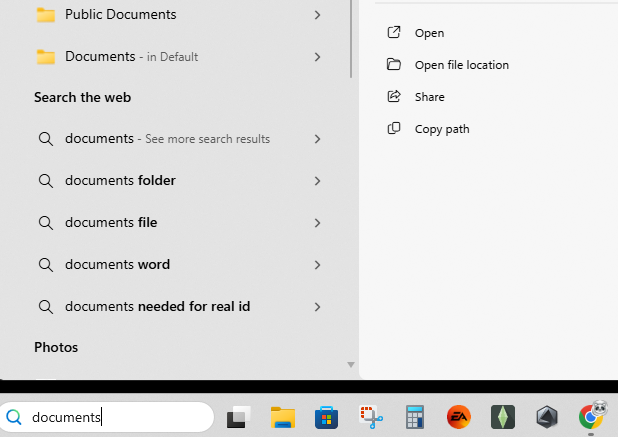
Place your cursor inside the search bar and search “Documents“
Step 3
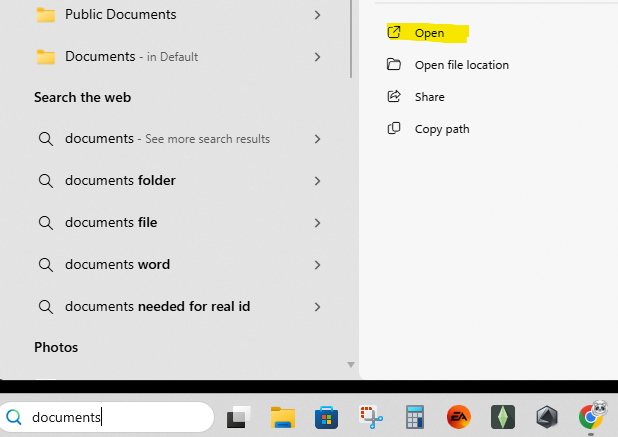
Select “Open“
Step 4
Double click “Electronic Arts” folder

Step 5
Double click “The Sims 4” folder
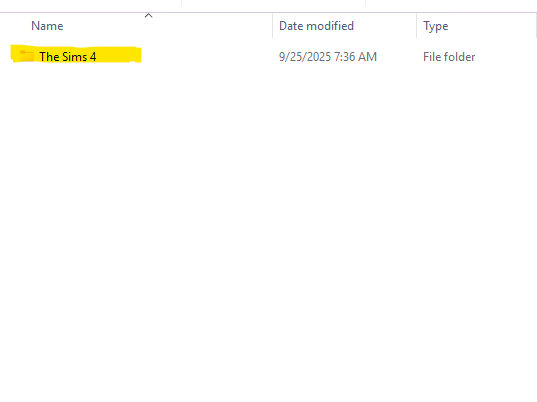
Step 6
From here, you will see all of your essential Sims 4 folders including Mods, Tray, Saves, etc.
What If I Don’t See A Folder?
For whatever reason, sometimes a folder may be missing. This is a relatively common but super easy issue to resolve.
Option 1
Manually add the missing folder(s) by selecting “New” then “Folder” and naming the folder appropriately.
Option 2
Launch your game to have the folders generated automatically. If your Mods folder is not generated the first time, ensure you have mods enabled in your game settings and restart your game.
Video Instructions
If you are more of a visual learner, here is a follow-along video to walk you through the same process documented above. I highly suggest watching the video through once so you know what to expect, then follow along with me the second time.
Bonus Tips
- If you don’t initially see your Electronic Arts folder at step 4, you may need to launch your game first.
- Right click and select “Pin to Quick Access” to easily save frequently used folders.
- If you open your “The Sims 4” folder and do not see a mods, tray, or save file folders:
- Manually create the folders yourself by going to new – folder – and renaming it or
- Launch your Sims 4 game and the folders will be generated for you. If a mods folder fails to generate, navigate to your in game settings and make sure mods are enabled. Restart your game.
- Not sure what to look out for when downloading mods? Read How To Safely Download Sims 4 Mods: A Beginner’s Guide To Protecting Your Game & PC
Want an even deeper understanding of all the files your game generates? Check out this super useful post that dives into them all here User files explained.
Summary
And that’s it! You’ve officially found your Sims 4 mods and tray folders. From here, you can confidently start downloading all the custom content your heart desires knowing you know exactly where everything goes.
Still a little shaky? Leave a detailed comment below with the issue you are experiencing and I will try to help. Also, let me know what other Sims 4 tech questions you have and I’ll be sure to include it in an upcoming tutorial.
Be sure to subscribe to my newsletter so you get all the tutorial goodness delivered straight to your inbox.
That’s all for now friends!
Stay Kind, Until next time💋


You May Also Like
The Sims 4 Music Den Kit Review: Is It Worth Buying?

Sim Dump Archive